Librera Reader is an open source e-book and document reader for Android that opens PDF, EPUB, MOBI, DjVu, FB2, comic archives, Word files and more in one app. It is developed by Ivan Ivanenko, licensed under GPL-3.0-or-later, and the version on this page is the F-Droid build, also called Librera FD.
Librera Reader leans heavily toward customization. You can tune day and night modes, link colors, page centering and even apply your own CSS, and it adds less common tools such as an auto-scrolling Musician's mode, RSVP speed reading and text-to-speech recording to audio files.
This article covers what Librera Reader does, the permissions it asks for, how to install the APK, how the F-Droid build differs from the PRO edition, and tips for getting the most out of it.
What is Librera Reader?
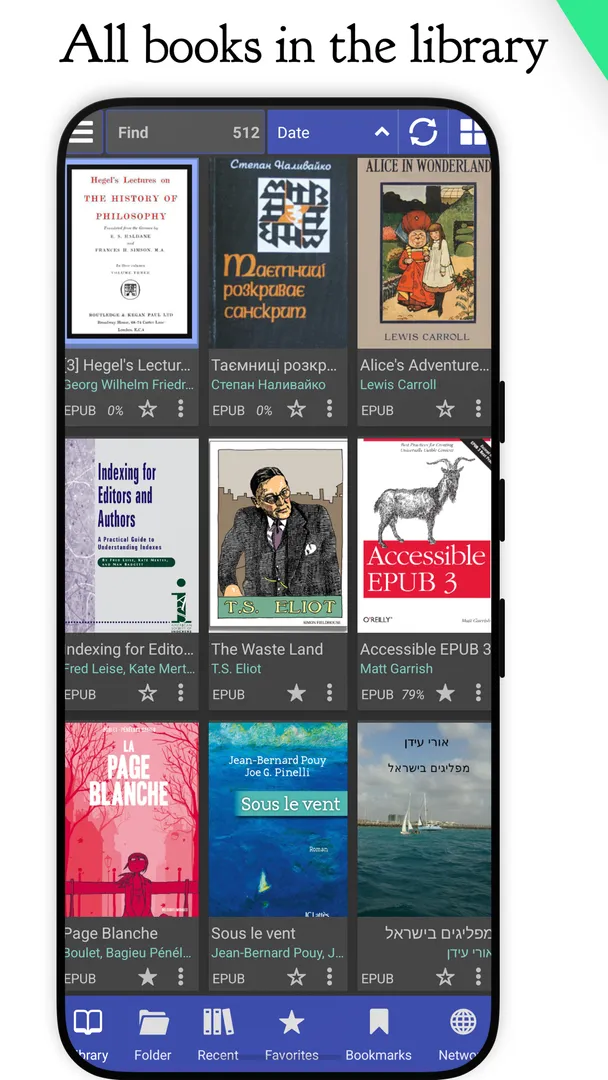
Librera Reader is a reading app for people with documents in many formats. The developer lists support for PDF, EPUB, MOBI, DjVu, FB2, TXT, RTF, AZW, AZW3, HTML, CBZ, CBR, DOC and DOCX. Instead of one app for PDFs, another for e-books and a third for comics, you can keep everything in a single library.
The F-Droid version is based on the latest MuPDF rendering library. According to the developer, the only difference between Librera FD and Librera PRO is that the F-Droid edition has no Google Play services and no Google Drive book synchronization. Every reading feature described below is part of this build.
You can browse the code on GitHub and find more about the project on the official website. On ApkSpark, Librera Reader is listed in the News & Reading category.
Key features of Librera Reader
Wide format support: Librera Reader opens PDF, EPUB, MOBI, DjVu, FB2, TXT, RTF, AZW, AZW3, HTML, CBZ, CBR, DOC and DOCX files. It also reads documents packed inside .zip archives, so you do not need to extract them first.
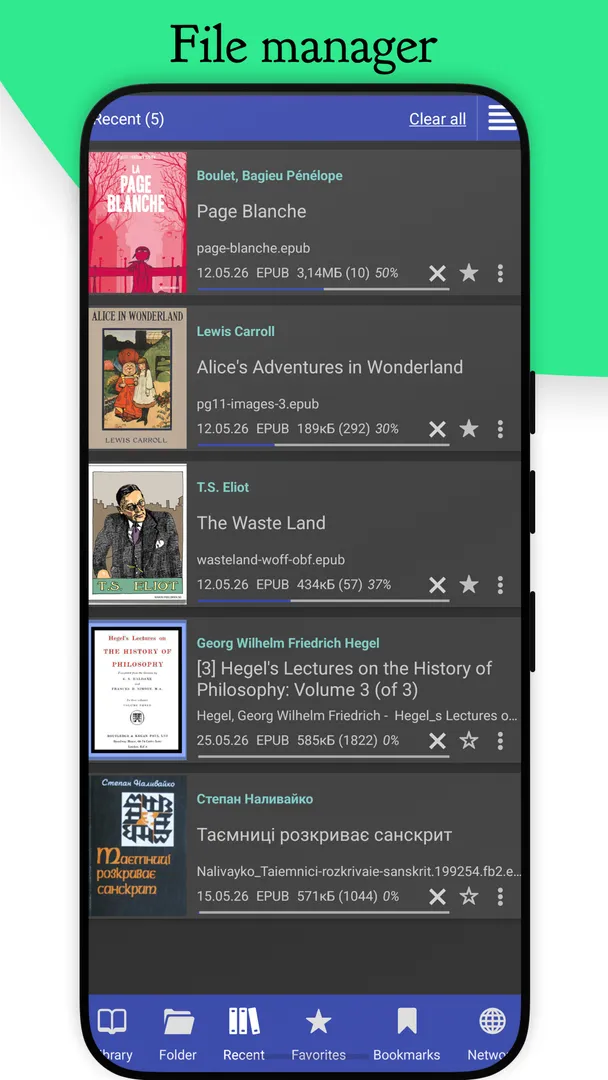
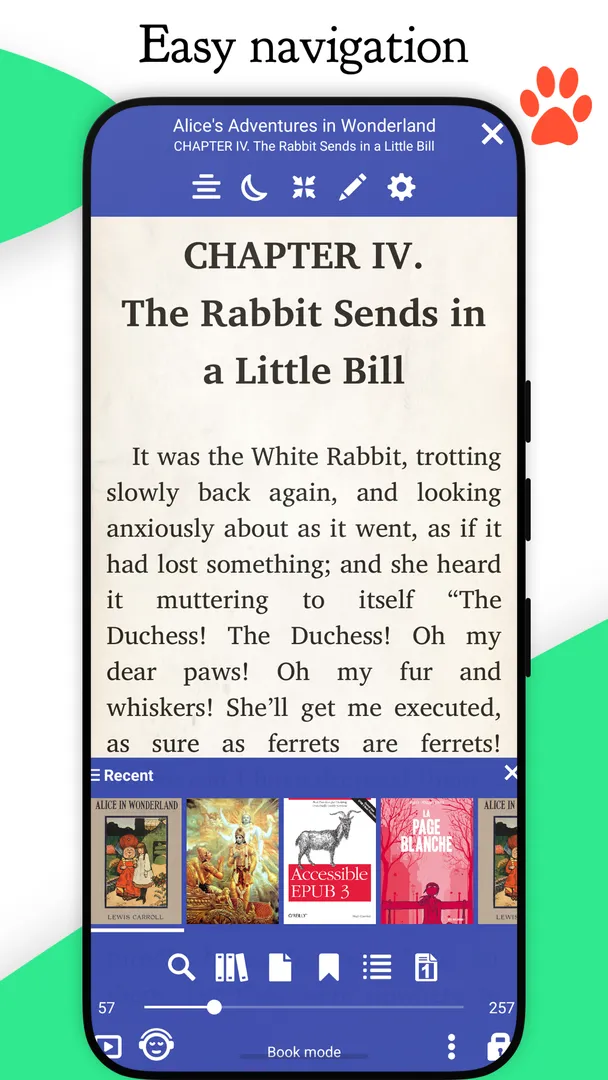
Flexible document discovery: You can find books by configurable criteria. Auto-Scan watches folders you choose, an in-app file explorer lets you browse manually, and a Recent list shows what you opened lately along with a reading-progress indicator.
Bookmarks, annotations and tables of contents: Librera Reader supports bookmarks, annotations and EPUB3 tables of contents. Bookmarks are movable and come with a floating indicator, which helps when you jump around in long reference books.
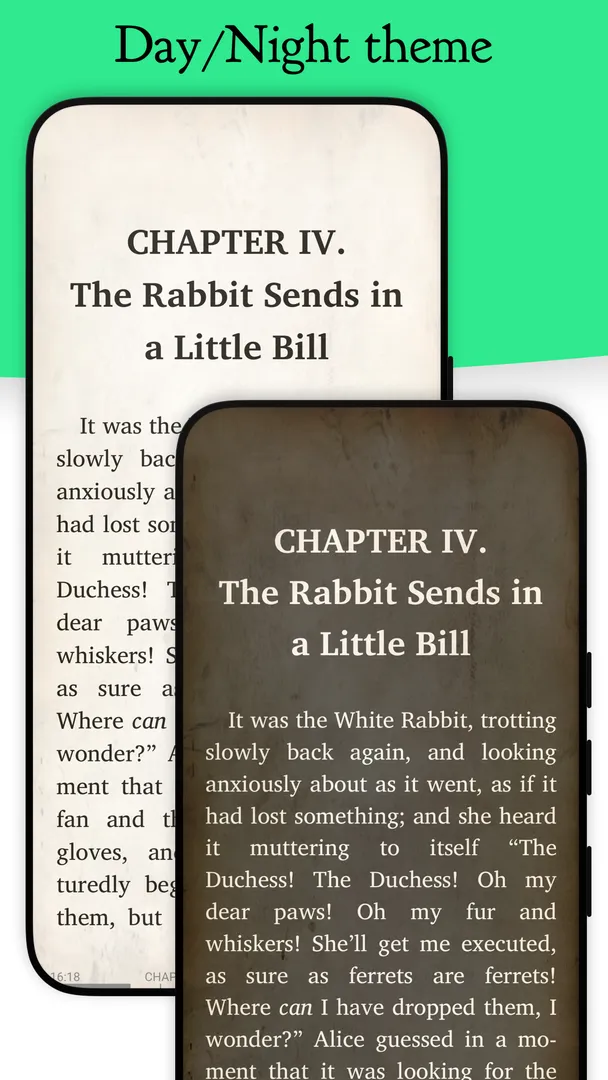
Day and Night modes: Both modes are configurable, so you can set colors that suit reading in daylight or in the dark. You can also change the link color, which also changes how footnotes and endnotes look.
Layout controls: Options include vertical-scroll lock, automatic and manual centering of documents, and single-page view of two-page documents, useful for scanned books where two pages were captured on one image.
Custom CSS: For reflowable formats you can write ad-hoc CSS to change how text is displayed. This goes beyond the usual font and margin settings and suits readers who want precise control.
Musician's mode: A hands-free, auto-scrolling mode with configurable speed. As the name suggests, it is handy when your hands are busy, and it works for any document you want to scroll steadily.
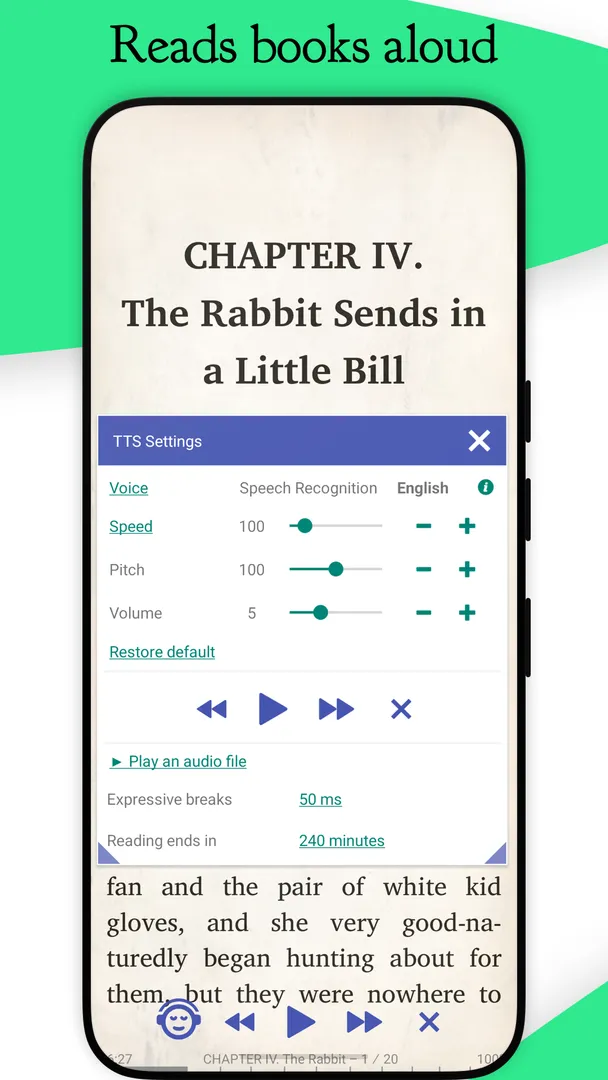
Text-to-speech and recording: Librera Reader has customizable TTS reading and a built-in media player. It can also record speech page by page to MP3 or WAV, so you can make audio versions of text for later listening.
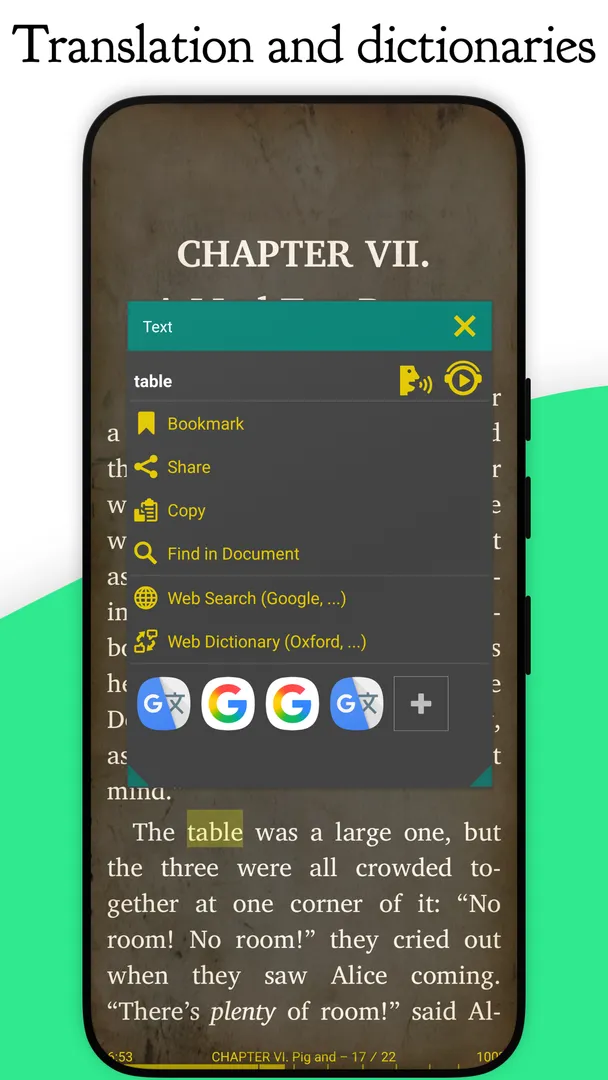
Dictionaries, search and RSVP: Librera Reader works with many popular offline dictionaries, offers multi-word text search, and includes RSVP reading in the style of Spritz, which flashes words one at a time to help you read faster.
Language and settings support: Right-to-left languages such as Thai, Hebrew and Arabic are supported. You can import and export settings, the current session is backed up automatically, and leading initials in FB2 documents are rendered.

Librera Reader permissions explained
The list of Librera Reader permissions is short and mostly about reading your files and keeping playback running. Sensitive permissions, such as storage access, are requested at runtime on modern Android, so the app asks before it can read or change your files.
Write storage: Lets the app save and modify files in shared storage. Exporting settings and saving TTS recordings as MP3 or WAV files are features that write files.
All files access: Lets the app manage all files on device storage. Auto-Scan of user-specified folders and the in-app file explorer need broad access to find books anywhere on the phone.
Run in the foreground: Lets the app keep a visible notification while it works in the background, for example while text-to-speech keeps reading.
Background playback service: Lets the app continue playing media from a foreground service. This supports the TTS reading and the built-in media player when the screen is off or you switch apps.
Control vibration: Lets the app make the device vibrate.
Prevent sleep: Lets the app keep the device awake while a task runs. Musician's mode and long TTS sessions benefit from this so the screen does not turn off mid-page.
View network connections: Lets the app check whether the device is online and which network type is in use.
Internet access: Lets the app connect to the internet. The description does not name a feature in the F-Droid build that requires it.
Show notifications: Lets the app post notifications. Android 13 and newer ask you first.
Run at startup: Lets the app start itself after the device boots.
Read storage: Lets the app read files in shared storage, which is how it opens your books and documents.
If you keep all your books in one folder, you can still grant storage access and point Auto-Scan only at that folder so your library stays tidy.

How to download and install Librera Reader APK
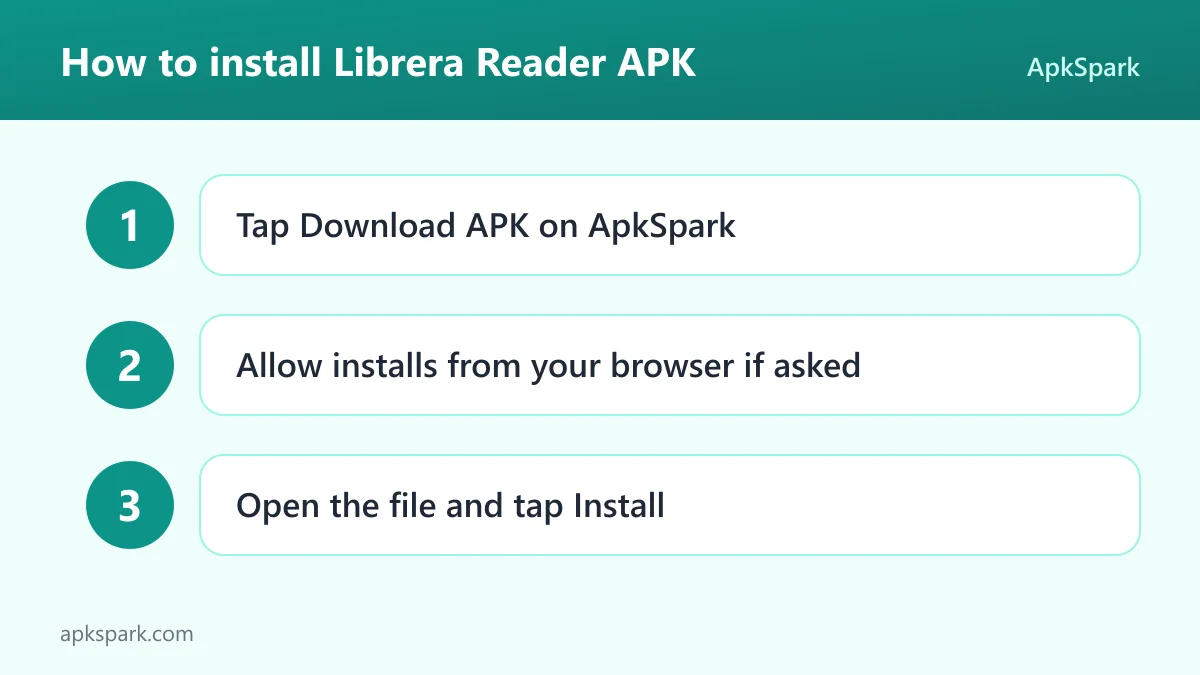
Tap the Download button on this page to get the APK file.
When Android asks, allow your browser to install unknown apps.
Open the downloaded file from your notifications or your Downloads folder.
Tap Install and wait for Android to finish.
Open Librera Reader and grant storage access when it asks so it can find your books.
For screenshots of each step and fixes for common errors, see our guide to installing APK files. The APK is 130.2 MB, so a Wi-Fi connection is the better choice for the download.
Is Librera Reader safe?
Librera Reader is free software under the GPL-3.0-or-later license, and its code is public on GitHub. Bugs and requests can be filed on the issue tracker, and release notes are in the changelog.
The APK offered here is the one from the F-Droid listing. F-Droid builds this APK from the published source code and signs it with the F-Droid key, and the file is downloaded from the official f-droid.org repository.
F-Droid lists no anti-features for Librera Reader. The F-Droid edition also leaves out Google Play services and Google Drive synchronization, which the developer names as the only differences from the PRO edition. If you prefer an app without Google components, that makes this build a natural pick.
The broadest permission is All files access. It is needed for scanning folders across your storage, but you should be aware that it gives the app wide access to files on the device. You can review or revoke it in Android's settings at any time.
Because the APK is signed with the F-Droid key, it cannot be installed as an update over a copy signed by a different key. If you switch from another source, uninstall that copy first and export your settings beforehand so you can restore your setup afterwards.
Librera Reader system requirements
Minimum Android version: Android 7.0 or newer for this build.
Download size: 130.2 MB.
Supported ABIs: arm64-v8a, armeabi-v7a, x86 and x86_64, which covers ARM phones, 32-bit devices and x86 tablets or emulators.
Version: 10.0.35-fdroid.
Release date: November 17, 2026.
RAM and free space for your library: not documented.
The developer's description mentions Android 4.1 support for the F-Droid version, but the current release listed here requires Android 7.0. Go by the 7.0 figure when checking an older device.
Who should use Librera Reader?
Librera Reader suits readers whose library is a mix of formats. If you have technical PDFs, EPUB novels, DjVu scans, CBZ comics and the occasional DOCX, one app that handles all of them saves time and keeps your bookmarks and progress in one place.
Librera Reader is also a good match for people who like to fine-tune their reading setup. Configurable Day and Night modes, custom CSS, link colors, centering and single-page view of two-page scans give you more control than most readers. Musicians get a hands-free scrolling mode, and listeners get TTS with MP3 or WAV recording.
If you rely on Google Drive to sync books between devices, note that the F-Droid build does not include that feature. The developer points to the PRO version on Google Play for it. Readers who want a minimal interface with few options may also find the number of settings more than they need.
Students and researchers are another natural audience. Annotations, bookmarks, multi-word search and offline dictionaries cover the basics of studying a text, while RSVP reading can help you get through long material faster. People who read in right-to-left languages, or switch between several languages, benefit from the built-in RTL support.
Tips for getting started with Librera Reader
Set up Auto-Scan first: Point Auto-Scan at the folders where you keep books. New files added there will show up in your library without you browsing for them each time.
Configure Night mode early: Adjust the Night mode colors and link color before a long reading session so footnotes stay readable on a dark background.
Try single-page view on scans: If a scanned PDF or DjVu shows two book pages per screen, switch to single-page view and use centering to trim the margins.
Record chapters with TTS: Use page-wise TTS recording to MP3 or WAV to turn a chapter into audio you can play in any media app later.
Use Musician's mode for hands-free reading: Set the scroll speed and let the page move on its own while you play an instrument or follow a recipe.
Export your settings: After customizing everything, export your settings so you can restore them on a new phone or after a reinstall.
It is worth spending ten minutes in the settings on day one. Because so much is configurable, small changes to centering, colors and scroll behavior can make a big difference to how comfortable long sessions feel, and you only need to set them once.
A typical reading session in Librera Reader
A first session in Librera Reader usually starts in the Recent list or the file explorer. You pick a book, and Librera Reader opens it with your chosen Day or Night mode. As you read, the progress indicator in Recent updates so you can see at a glance how far along you are in each title.
When you hit an unfamiliar word, an offline dictionary lookup keeps you in the book. Multi-word search helps you return to a passage, and movable bookmarks with a floating indicator mark spots you want to revisit. For EPUB3 books, the table of contents lets you jump straight to a chapter.
On the commute, you might switch to TTS and let the reader continue in the background while the screen is off. Later, at a music stand, Musician's mode can scroll a score at a steady pace. Throughout, Librera Reader backs up the current session automatically, so you pick up where you left off.
Getting the most from each format in Librera Reader
Different file types benefit from different settings, and Librera Reader gives you the controls to treat each one on its own terms.
EPUB, FB2, MOBI and AZW3: These reflowable formats respond to custom CSS, link color and Day or Night mode settings. FB2 books also get leading initials. EPUB3 titles show their table of contents for quick navigation.
PDF and DjVu: Fixed layouts are where auto and manual centering, vertical-scroll lock and single-page view of two-page documents matter most. Multi-word search helps in long technical PDFs.
CBZ and CBR comics: Comic archives open directly, and the file explorer and Recent list make it easy to move through a series one issue at a time.
DOC, DOCX, RTF, TXT and HTML: Office and plain text files open in the same reader, so you can read a report or an exported web page without a separate office app.
Zipped documents: If a book arrives inside a .zip file, Librera Reader can open it from the archive.
Right-to-left text: Books in Thai, Hebrew, Arabic and other RTL languages are supported, which matters if you read in more than one script.
Documented limitations of Librera Reader
The developer is direct about what the F-Droid build leaves out. There is no Google Drive book synchronization, so moving your library between devices is up to you, for example by copying files or using the settings export. Google Play services are also absent, which is a plus for some people and a minus for anyone who relied on that integration.
The developer also says that the best way to fully appreciate the app is the PRO version from Google Play, which it calls restriction-free. Based on the description, the only difference is the Drive sync and Play services. Finally, the size of the download, 130.2 MB, is larger than many lightweight readers, and Librera Reader asks for All files access to scan folders across your storage.
Alternatives to Librera Reader
ApkSpark does not list related apps for Librera Reader yet. You can browse more News & Reading apps to compare other e-book and document readers, or check the Ivan Ivanenko developer page for other apps by the same developer.
The developer also offers Librera PRO on Google Play, which adds Google Drive book synchronization. For reading in a web browser, the project has an online book reader on its official website.
Final verdict
Librera Reader is a capable, open source reader that handles nearly every common e-book and document format, with deep customization, TTS recording, Musician's mode and RSVP reading on top. The F-Droid build is made from public code and carries no anti-features.
Its main gaps are the missing Google Drive sync and a settings menu that can feel crowded. If you want one reader for a mixed library and enjoy tuning how text looks, it is an easy app to recommend.