


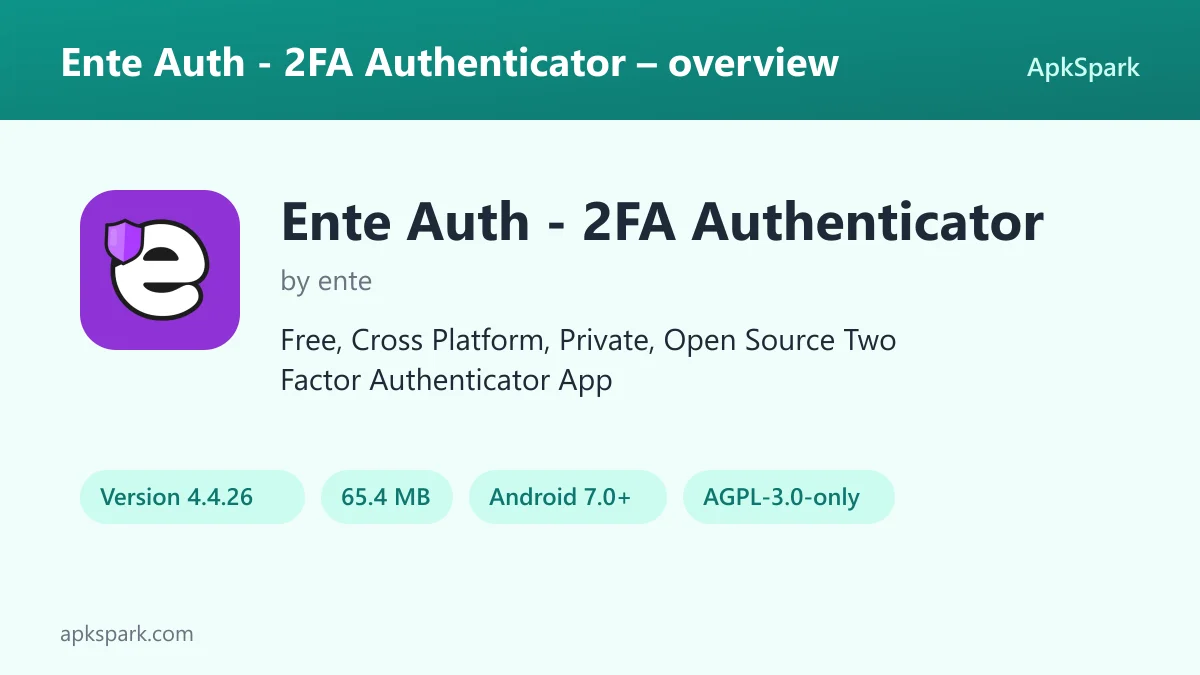
Ente Auth is a two-factor authentication app for Android that generates the six-digit TOTP codes many websites ask for after your password. It can keep those codes on a single phone with no account, or back them up to the cloud with end-to-end encryption so you can reach them from other devices.
The app comes from ente, the team behind Ente Photos, and it uses the same encryption protocols as that product. It is open source under the AGPL-3.0-only license, and the build on this page is compiled by F-Droid from the published code.
Below you will find what Ente Auth does, which permissions it requests and why, how to install the APK, what the F-Droid build means for safety, and who it fits best. Everything is based on the developer's description and the published build details.
What is Ente Auth?
Ente Auth is an authenticator. When you turn on two-factor authentication for an online account, the service shows you a QR code or a secret key. You add that to the app, and from then on it produces a new short code every few seconds. You type the current code after your password to prove you have your phone.
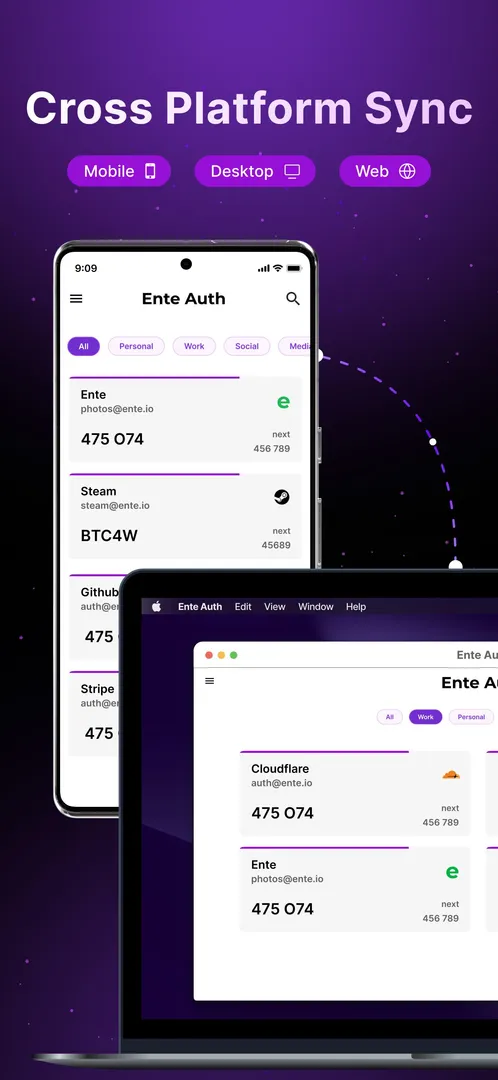
Two things set Ente Auth apart from a basic authenticator. First, backup is optional and end-to-end encrypted, so a lost phone does not have to mean losing access to every account. Second, it is cross platform: the developer lists Android, iOS, Mac, Windows, Linux and the web, so the same codes can follow you to a laptop or a second phone.
You do not have to use the cloud part at all. The description states that codes are generated offline and that you can use the app locally, without signing up, for as long as you want. The source code lives in the main ente repository on GitHub, and the company's official website has more on the wider product family.
In daily use, each entry in Ente Auth shows a service, its icon and the current code with a timer. You open the app, find the account through search or your pinned list, tap the code to copy it, and paste it into the login form. If the timer is nearly out, the next code is already on screen. That loop takes a few seconds and is the part of the app you will touch most.
Key features of Ente Auth
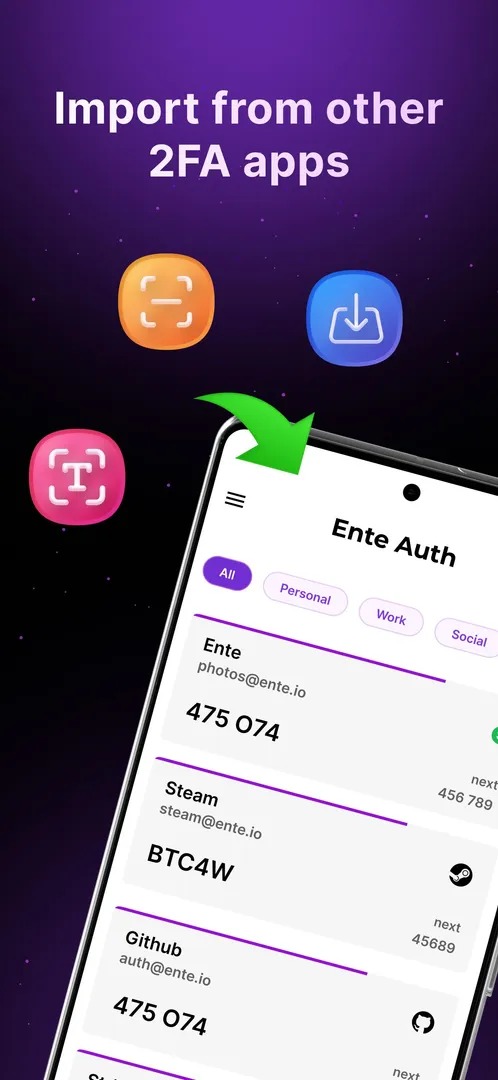
- Easy import: Add TOTP codes by scanning a QR code, or import them from other authenticator apps. The developer frames this as a way to make sure you never lose a code while migrating, which matters if you are moving dozens of accounts at once.
- Offline mode with no signup: Codes are generated on the device, so a weak or missing network connection does not stop you from logging in. You can skip the account entirely and use Ente Auth as a local-only authenticator for as long as you like.
- End-to-end encrypted backup: If you do create an account, your codes are backed up to the cloud with end-to-end encryption, using the same protocols Ente Photos uses. The goal is that you do not lose your tokens when a phone breaks or is replaced.
- Cross platform apps: The developer lists versions for Android, iOS, Mac, Windows, Linux and the web. With backup enabled, the same list of codes is available on each device, so you can read a code on a computer without reaching for your phone.
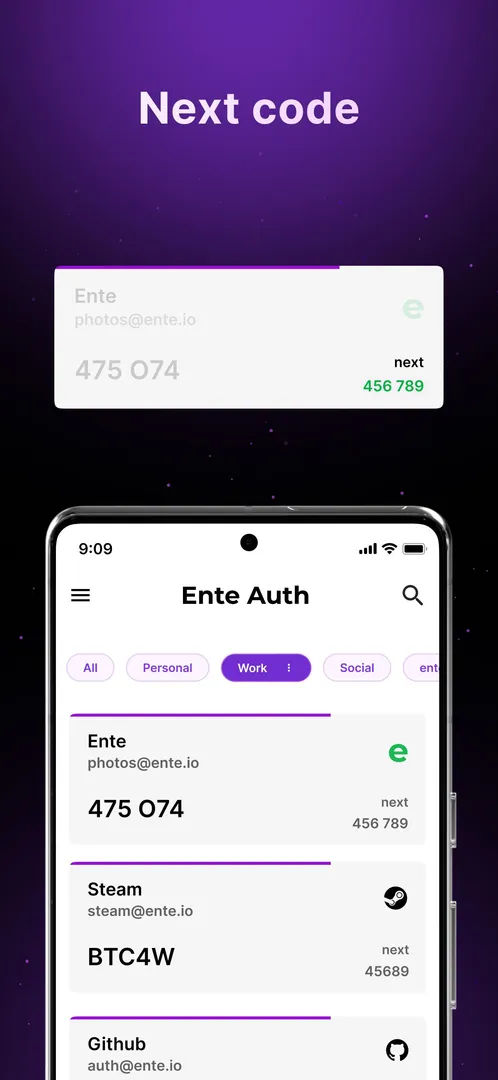
- See the next code: When the current code is about to expire, the app shows the next one prominently. You can start typing the upcoming code instead of waiting for the timer to roll over, which saves a few seconds on every login near the boundary.
- Search, pin and tags: One-tap search lets you start typing a service name instead of scrolling a long list. You can also pin codes and add tags, then filter by tag. These tools matter most once you have many accounts protected.
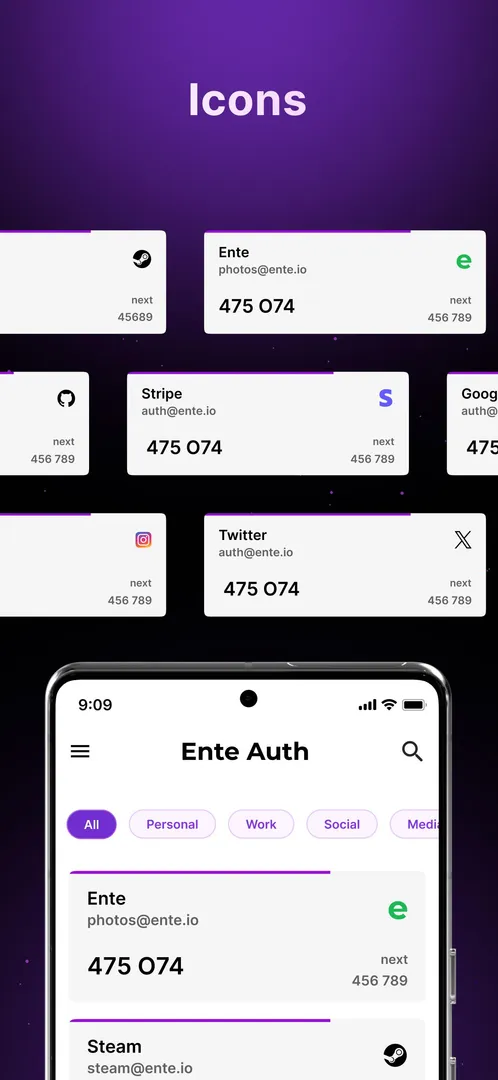
- Custom order and icons: Reorder codes so your most frequently used services sit at the top, and choose icons from what the developer calls a large icon library. Clear icons make it faster to find the right entry at a glance.
- Secure code sharing: You can share a 2FA token as a link and set an expiry time on that link. The developer's example is a colleague who needs the code for a shared account, which avoids sending codes over chat again and again.
- Notes for each entry: Attach notes to an entry to store extra details, including recovery codes. Notes are backed up with end-to-end encryption along with the codes, so the information you need for account recovery stays next to the account itself.
- Tap to copy: Tapping a code copies it, so you can paste it into a login form in another app instead of typing six digits by hand.
Ente Auth permissions explained
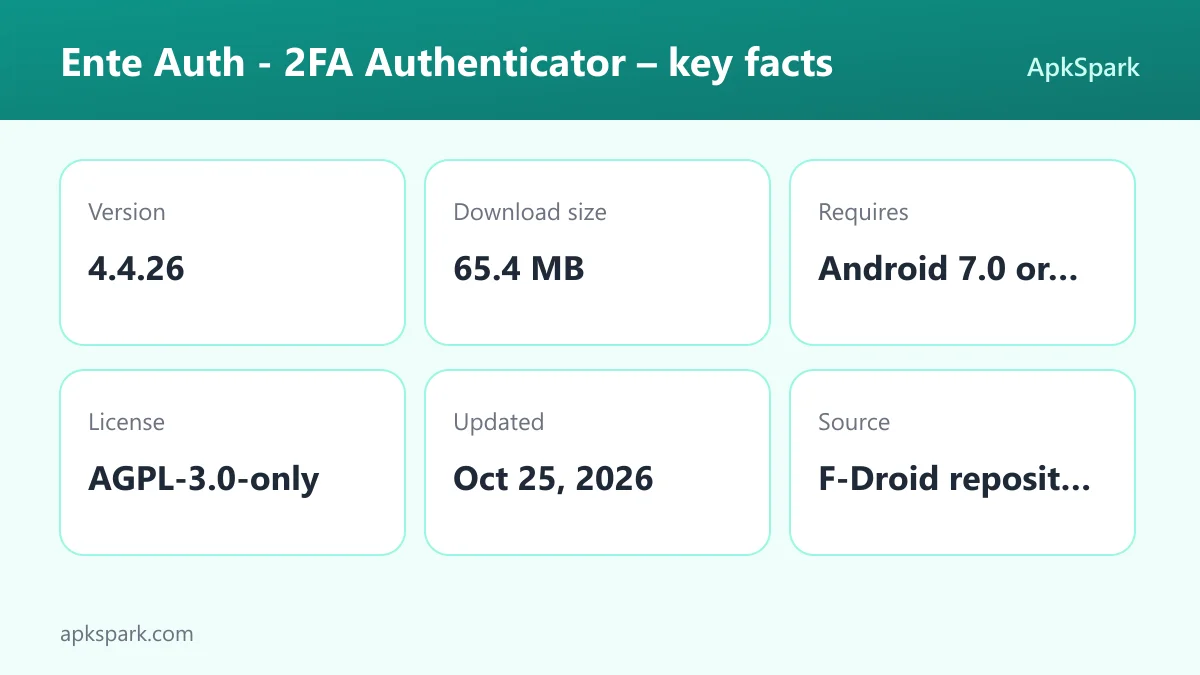
Every Android app declares the permissions it may use. On modern Android, sensitive permissions such as camera and storage access are requested at runtime, which means you see a prompt and can refuse. Here is what each permission declared by Ente Auth does.
- Internet access: Lets the app connect to the internet. This is needed for the optional end-to-end encrypted cloud backup and for syncing codes across devices. Code generation itself works offline.
- Read storage: Lets the app read files in shared storage. This fits importing codes from other authenticator apps when they hand you an export file.
- Write storage: Lets the app save and modify files in shared storage, for example when writing a file to a location you choose.
- Biometrics: Lets the app use fingerprint or face unlock to confirm actions. The description does not detail which actions use it.
- View network connections: Lets the app check whether the device is online and which type of network is in use, for example before it attempts a backup.
- Camera: Lets the app take photos and record video. In practice this is what lets you scan the QR code a website shows when you enable two-factor authentication.
- Control vibration: Lets the app make the device vibrate. The description does not say which feature uses it.
- Show notifications: Lets the app show notifications. On Android 13 and newer, you are asked first.
- Fingerprint: Lets the app use the fingerprint sensor to confirm actions. This is the older form of the biometrics permission above.
Ente Auth does not request contacts, location, SMS or microphone access. That is a short list for an app that handles sensitive data.
How to download and install Ente Auth APK
- Tap the Download button on this page.
- When Android asks, allow installs from your browser.
- Open the downloaded APK file.
- Tap Install.
- Open the app.
If Android blocks the file or you have not installed an APK before, our guide to installing APK files explains each prompt and the setting that controls it. After installing, decide whether you want an account for encrypted backup or prefer to use the app offline, then add your first code.
To update later, download the newer APK from this page and install it over the current one. Because the F-Droid build is signed with the F-Droid key, an update from the same source installs on top and keeps your data. A build signed by a different key, such as one from another store, will not install over it without removing the app first, so export or back up your codes before switching sources.

Moving your codes into Ente Auth
Most people install an authenticator because they are replacing another one. The documented path is straightforward. Open your old app and check whether it offers an export. If it does, use the import option in Ente Auth to bring those codes across. If it does not, you will need to visit each service, open its two-factor settings, and scan a fresh QR code with the camera.
Do not delete your old authenticator until you have tested a code for each important account. Sign in once with the new code, confirm it works, and only then remove the old entry. While you are at it, add each account's recovery codes to the notes field so they are stored in the same encrypted place.
Is Ente Auth safe?
Ente Auth is open source under the AGPL-3.0-only license. Anyone can read the code, build it themselves, and report problems on the public issue tracker.
The APK on this page comes from F-Droid. F-Droid builds this APK from the published source code and signs it with the F-Droid key. The file is downloaded from the official f-droid.org repository. You can compare package details on the F-Droid listing for Ente Auth.
The F-Droid listing data for this build flags no anti-features, so there are no labels for ads, tracking or non-free dependencies. The backup feature sends your codes to ente's servers, but the description states they are end-to-end encrypted. If you want nothing to leave the phone, skip the account and use offline mode.
End-to-end encryption means the codes are encrypted on your device before upload, and only your devices hold the keys to read them. The server stores data it cannot decrypt. For an authenticator this is the property that matters most, because a leaked list of TOTP secrets would let anyone generate your login codes. Ente Auth applies the same approach to notes, so recovery codes stored there get the same protection.
Ente Auth system requirements
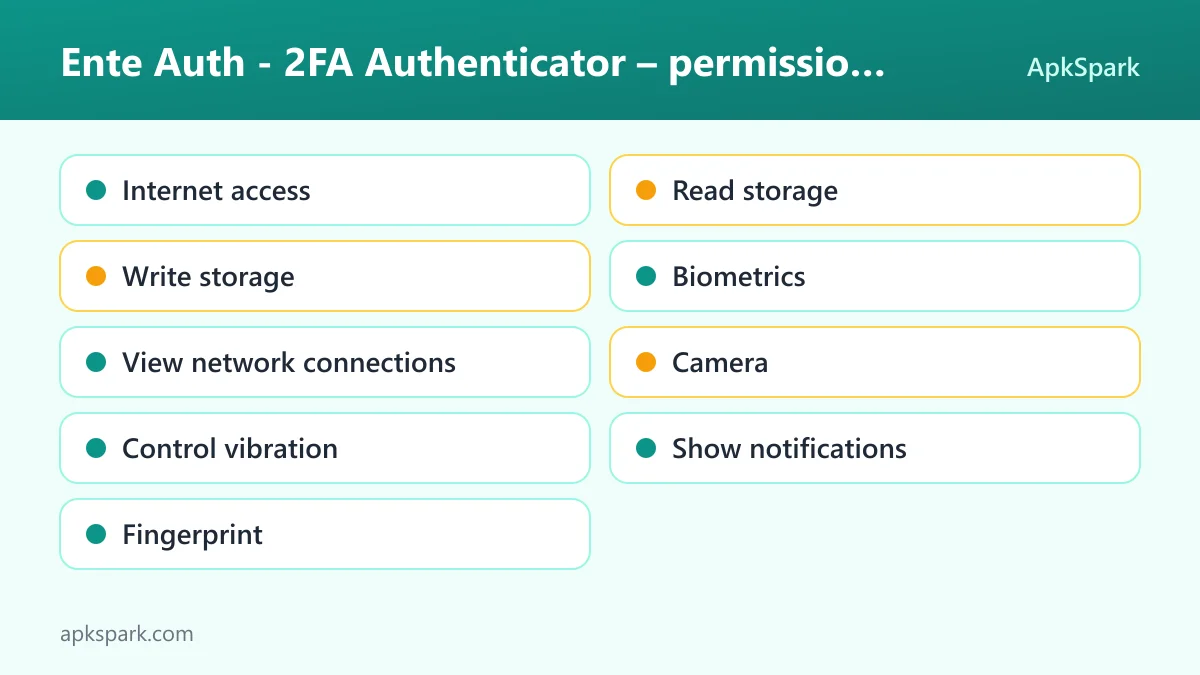
- Minimum Android version: Android 7.0 or newer.
- Download size: 65.4 MB.
- Supported ABIs: arm64-v8a, armeabi-v7a and x86_64. That covers 64-bit and 32-bit ARM phones as well as 64-bit x86 devices such as some emulators and tablets.
- Version: 4.4.26.
- Release date: October 25, 2026.
RAM and free storage needs after installation are not documented. The download is on the larger side for an authenticator, so leave a little room on older phones.
Who should use Ente Auth?
Ente Auth fits anyone who protects several accounts with two-factor codes and worries about what happens if the phone is lost. The encrypted backup and the cross platform apps answer that concern directly, and the next-code preview and search make daily use quicker.
It also suits people who want an authenticator that does not depend on an account. The offline mode means you can treat it as a plain local code generator, and later turn on backup if you change your mind.
Small teams that share a login for a common account can use the link sharing with an expiry time instead of reading codes aloud. People who keep recovery codes in random text files will appreciate having encrypted notes next to each entry.
Ente Auth is a weaker fit if you need a form of two-factor authentication other than TOTP codes, since the description does not cover push approvals or hardware keys. It is also more than you need if you protect only one or two accounts and never change phones, although the offline mode keeps it simple even then.
Tips for getting started with Ente Auth
- Pick a mode first: Decide between offline use and encrypted backup before adding many codes. If you want access on a computer, create the account and install the desktop or web version.
- Import rather than retype: Use the import option to bring codes from your previous authenticator. Scan fresh QR codes only for services your old app cannot export.
- Save recovery codes in notes: For each important account, paste its recovery codes into the entry's notes. They are backed up with end-to-end encryption along with the code.
- Organize early: Add tags such as work or finance, pin the accounts you use most, and reorder the list. Search handles the rest.
- Use next code near expiry: If the timer is almost out, type the next code the app shows instead of waiting for the current one to roll over.
- Test backup on a second device: If you turn on backup, sign in on a computer or the web version and confirm your codes appear before you rely on it. That is the moment to find out whether anything is missing.
- Set expiry on shared links: When you share a code with a colleague, give the link a short expiry so it does not stay usable longer than needed.
Documented limitations of Ente Auth
The description is clear about what the app covers, and it is worth reading the gaps as well. The import feature and the code display are described in terms of TOTP codes, the time-based codes most websites use. Other forms of two-factor authentication, such as push approvals or hardware security keys, are not documented.
Cloud backup and access across devices need an ente account. Offline mode is fully supported, but in that mode your codes live on one phone, so you are responsible for keeping your own copy of recovery codes somewhere safe.
The description lists apps for iOS, Mac, Windows, Linux and the web, but this page provides only the Android APK. Get the other versions from the developer's own channels. Finally, the app declares biometric and fingerprint permissions, yet the description does not explain which actions they protect, so check the settings after installing to see what is available.
Alternatives to Ente Auth
We do not list direct alternatives for this app yet. To compare it with other privacy and security tools, browse more Security & Privacy apps in our catalog. You can also see other apps by ente on the developer page.
When you compare, look for the same basics: offline code generation, an import path from your current app, and a clear answer about how backups are encrypted. Those are the points this app documents most clearly.
Final verdict
Ente Auth is an open source TOTP authenticator that works fully offline or with end-to-end encrypted backup across Android, iOS, desktop and web. Import, search, tags, notes and the next-code preview cover the practical problems of managing many codes.
Ente Auth is also honest about scope. It is an authenticator, not a password manager, and it does one job with sensible extras.
Install Ente Auth if you want backup without giving up encryption, or a local-only authenticator you can upgrade later. The F-Droid build is compiled from public source and has a short permission list. For release notes, see the Ente Auth changelog.